
Overview
The Communication Center is the section that works as your inbox.
You can view leads, replies, businesses that opened but didn't reply, recently sent emails, and scheduled emails.
By clicking in each box, like the Leads generated, you'll filter automatically only leads, and so on.
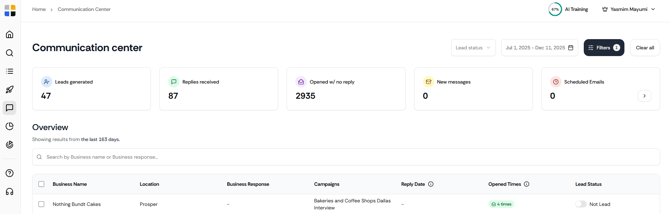
If you're not seeing any emails, maybe you haven't been sent emails in a while. Adjust your filters to select a wider date range.
If you click on Scheduled Emails, you'll be redirected to a section where you can review all emails being scheduled to send.
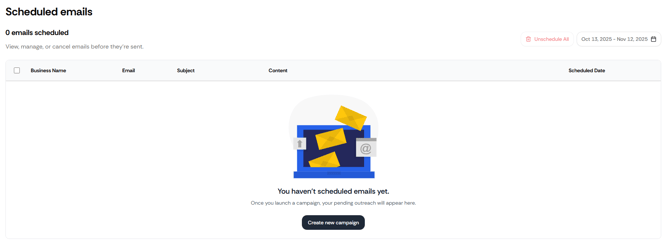
If needed, you can unschedule emails on the same page.
You can also update lead status, see how many times the business opened, and other details.

How to create a new list in the Communication Center
You can select all the businesses showing on your page by clicking in the first box on the left side of your screen, or manually select which businesses you want.
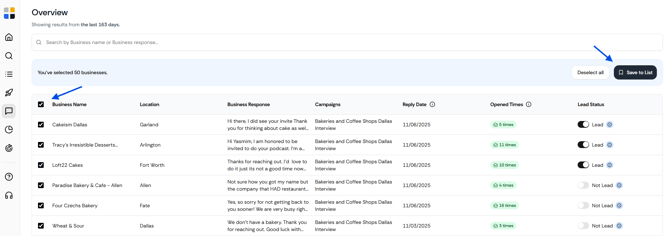
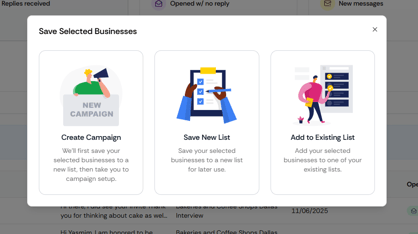
Click in Save to List in the dark button in the right side of your screen, then select which options fits better: create a campaign, just save new list, or add to existing one.
How to see Business Details
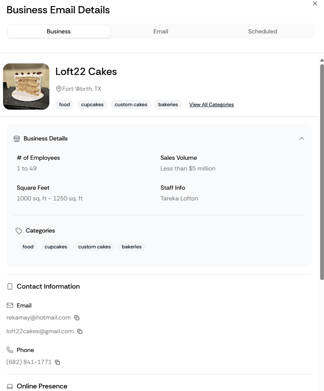
Clicking in the row of the business, you'll open Business Details to see more information about the company, emails sent and received, and you can check if there's more scheduled.
In the Filters, you also change the date range, filter by lead status, list, number of opens, and replies.
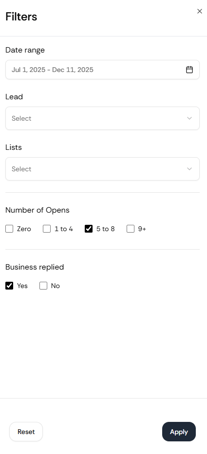
Remember to click Apply to save your changes.
How to use the Communication Center for follow-up 🔥
Replies
If someone replied to your campaign, pick up the phone and call!
"I was going to send you an email, but thought I’d save you some reading time. Is now a good time to talk about _?"
If they don't have time, no worries, you can follow up with a more personalized email:
"Thanks for connecting with me, here's the information __. When is a good time to call you next week?"
You can leave a voicemail if they didn't answer and send the follow-up email.
"Tried to give you a call, here's the information__"
Use social media to follow up 💬
Click the Business Details on the right panel to see their online presence.
For businesses that have Facebook and Instagram, you can send 10-20 DMs in the morning and later in the evening.
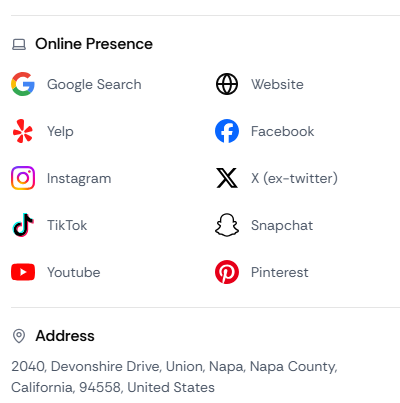
Remember to type the messages and stick to 20 DMs in each period of the day. If you do more, you'll likely get marked as spam!
Opens
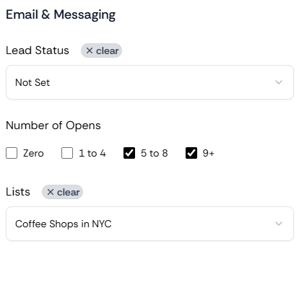
1. Filter for the leads who have opened your emails
Our recommendation is to start with the hottest leads, people who have opened a lot of times.
You can select those without lead status and a specific list (if you have different campaigns going).
2. Enroll in a follow-up sequence
You can also do this manually, but we recommend creating a follow-up sequence with 2 emails to save you time.
Templates:
Email 1
Hey there,
Saw you’ve revisited my last email. I figured it might’ve sparked some interest.
If there’s something you’re curious about or if now’s just not the right time, totally fine either way.
Just let me know how I can be helpful!
Thanks,
Email 2
Hello again,
I don’t want to assume anything, but multiple opens usually means it’s at least worth a chat.
If you're open to a walkthrough of how __ could fit what you’re working on, I’d be happy to share.
Best regards,
These are just templates to help you get started. You should always test what works for your audience.
You can reach out to resquaredcoach@re2.ai for guidance on content strategy, or to your CS Manager!
Bonus resources
The follow-up cadence that works!
Commercial Real Estate
The “I’ll Be In Your Area” Follow-Up That Lands ToursWebinar: Mastering Lead Conversion in CRE
Case Study: How Global Fund Investments Signs More Local Leases
Video: How to Follow Up with a Lead
Loom
Have questions or running into technical issues? Our best email is human@re2.ai
For guidance on campaign strategy, reach out to our Resquared Coach: resquaredcoach@re2.ai